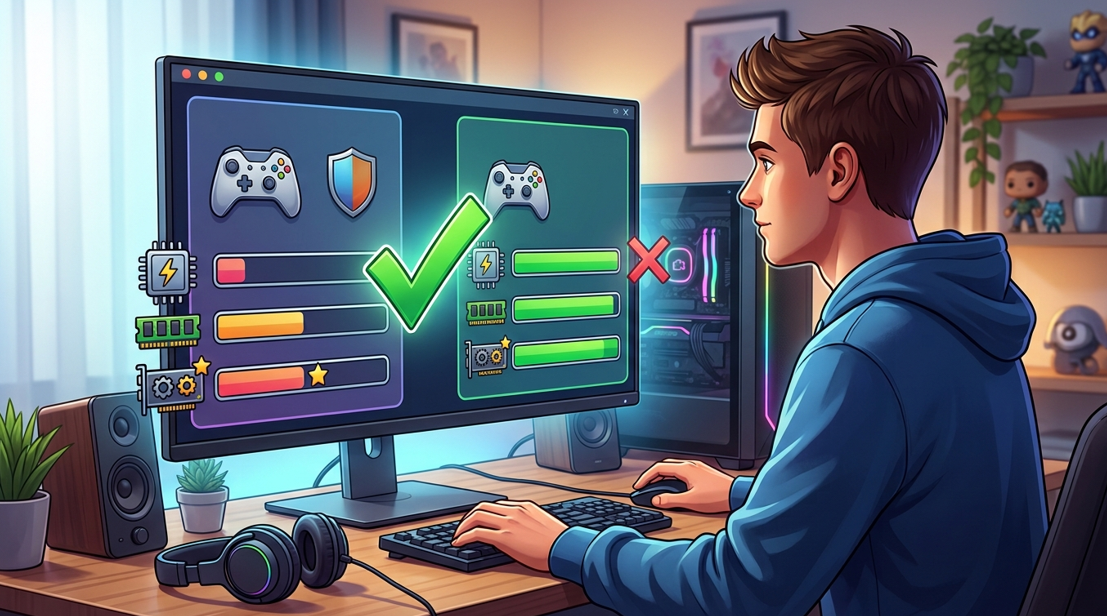
Before downloading or purchasing a PC game, check whether your computer can run it properly. Whether you’re exploring demanding PC titles or browsing gaming platforms like PHarcade, understanding hardware requirements can help you avoid compatibility problems, slow performance, and unnecessary upgrades. By comparing your computer’s specifications with a game’s published requirements, you can make a more informed decision about what to play.
1. Find the Game’s System Requirements
First, verify the official system requirements for the game. These details are usually provided on its Steam store page, developer’s website, or publisher’s support page.
Almost all games contain two types of requirements:
● Minimum requirements list the essential specifications of the computer system required to play the game although the performance will not be satisfactory.
● Recommended requirements specify what computer system to be used to achieve the highest possible level of performance of the game.
You need to examine both the lists before downloading the game. You are also to check the operating system needs, DirectX requirements, and hard drive conditions.
2. Check Your PC’s Hardware Specifications
Windows has a lot of built-in applications to make it easier to find the components of your computer.
To check your processor and RAM:
-
1. Start Settings.
-
2. Select System and About.
-
3. Under the Device specifications, find your processor and RAM.
To know your graphics card:
-
1. Press Windows + R.
-
2. Type dxdiag and press Enter.
-
3. Click the Display tab and find your graphics info.
Some computers have integrated graphics, one with a processor and other computers have a hardware graphics card. If there are both mentioned, find out which one is going to be used for your game.
To check free space on your hard drive, open File Explorer and select This PC.
3. Compare Your Specifications with the Requirements
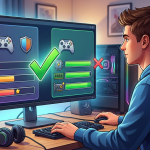
Once you have your PC specifications, compare them with the game’s published requirements.
| Component | What to check |
| CPU | Processor model and performance |
| GPU | Graphics card model and capabilities |
| RAM | Installed memory compared with the required amount |
| Storage | Available space and required drive type |
Bear in mind that numbers or names alone should not be used to compare parts. A new CPU is not more powerful than all older versions. Also, GPUs having similar names may perform differently.
If you are uncertain as to your component’s performance, visit a reputable hardware benchmark site. The best thing to do is to search for the comparison that includes the exact CPU and GPU in question and includes a benchmark for the specific game you’d like to run.
Also remember that it is possible for a PC to satisfy one requirement but fail in meeting another. No matter how powerful, graphics cards will not remedy the issues caused by the lack of RAM or an insufficiently powerful CPU.
4. Understand What the Results Mean
Comparison allows you to ascertain if a game will run on your computer or not. If your PC falls short of the minimum requirements, you could have problems like incompatibility, crashes, or slow performance. The game may start working, but that is not guaranteed.
If your PC meets the minimum requirements but does not meet the recommended requirements, your computer settings may have to be configured.
Being able to meet the recommended requirements is a good start, but it does not guarantee any specific frame rates.
The best way to have an accurate assessment would be to check the test results of the games that use some hardware similar to yours.
5. Consider Resolution and Graphics Settings
Your choice of resolution and graphics settings has an effect on the performance of the game you’re playing.1080p graphics require less from a graphics card than those of 1440p or 4K. Another aspect impacting the frame rate is the use of advanced features such as ray tracing, high-quality shadows, and modern textures.
In case of low performance of the given game, it makes sense to change the options choosing lower-intensity settings, decreasing graphics resolution, or switching off graphics options that are not required. You might also want to terminate some apps running in the background. However, changing the resolution or other settings is not a panacea. If the hardware of your computer is much lower than the hardware required, then changing the settings might not help make the performance satisfactory.
6. Check Storage and Compatibility
Prior to installing a gaming application, ensure that your drive has sufficient free space. In particular, updates and other downloadable content may require more space than what was necessary for the first installation.
Verify if the game has any specific requirements such as Windows version, graphics technology, or launcher. Moreover, if you are using a laptop for gaming, keep in mind that the performance of your laptop may differ from that of desktop computers using similar components.
Maintaining your operating system and graphics driver updated is another way to improve compatibility issues.
Final Checklist Before Playing
To ensure proper functioning of the PC game you would like to purchase or install, you need to:
● Review official minimum and recommended requirements for the PC game.
● Identify CPU, GPU and RAM specs.
● Check the availability of enough storage space.
● Check whether hardware specifications meet standards.
● Check your desired resolution and graphic quality.
Checking all the above-mentioned points helps to avoid any complications in terms of compatibility, and thus improve decisions regarding upgrades and replacements.





![[Rumor] Star Wars Jedi 3 announcement is imminent. It could be released in 2027](https://vgleaks.com/wp-content/uploads/2026/10/star-wars-jedi-survivor-150x150.jpg)

![[Rumor] Marvel’s Venom is still in development](https://vgleaks.com/wp-content/uploads/2026/09/venom-150x150.png)